
How to Disable 5G on Your Samsung Galaxy S20 for Better Battery Life and Connectivity
By Editor • August 14, 2026 • 3 min read
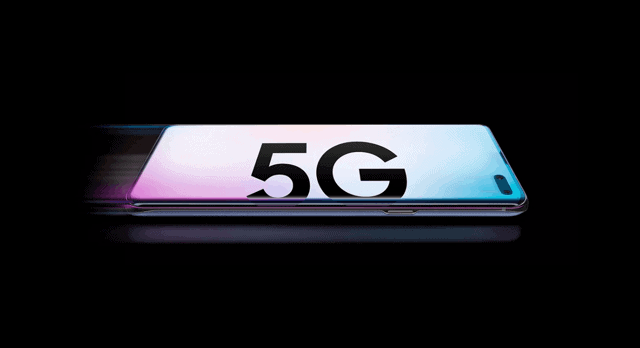
The Samsung Galaxy S20, known for its advanced technology and sleek design, can sometimes fall short in battery performance when utilizing 5G connectivity. Many users have reported that this high-speed network drains their battery more rapidly than anticipated or leads to connectivity issues in areas with weak coverage. Fortunately, turning off 5G on your device is a quick and straightforward solution that could enhance your phone's reliability and conserve battery life.
5G technology, while promising lightning-fast internet speeds, is not universally accessible. In fact, many users find themselves in areas where 5G coverage is spotty or non-existent. In such cases, reverting to 4G LTE can provide a more stable and dependable connection. To make this adjustment on your Galaxy S20, simply navigate through your device settings. Start by going to Settings, then select Connections, followed by Mobile networks. Here, you can choose Network mode and select the option for LTE/3G/2G (auto connect).
While there are several reasons for disabling 5G, the most common include battery preservation and poor connectivity. Users have observed that 5G tends to consume more battery power compared to its predecessor, 4G LTE. If you are frequently in locations with unreliable 5G signals, switching to 4G may not only extend your battery life but also improve your call quality and data speeds. Even devices with 5G capabilities can experience interference from household devices, making a switch to 4G a practical choice.
If you're unsure about your device's 5G capabilities or if you're experiencing difficulties in disabling the feature, restarting your phone can often resolve any lingering issues. For those still facing problems, reaching out to Samsung's customer support may provide additional assistance.
Turning off 5G is not exclusive to the Galaxy S20; the same steps apply for various other Samsung devices, including the Galaxy A32, Note series, and S21 models. The process remains consistent across devices running One UI version 3.1 or higher. If you decide to re-enable 5G later, simply follow the same steps and opt for the 5G/LTE/3G/2G setting.
For users residing in areas with limited 5G infrastructure, it’s advisable to keep the 5G setting disabled to avoid unnecessary battery drain. However, if you live in a region with robust 5G coverage and speed is a priority, maintaining the 5G Auto setting can ensure you leverage the fastest available connection when feasible.
It’s worth noting that disabling 5G does not lead to a drastic decrease in battery life, as modern smartphones are designed to intelligently manage their connections. When your device is connected to a 4G network, it won’t continuously search for a 5G signal unless you are in an area where both networks are available. The phone will automatically switch to 5G when it's beneficial and required.
To summarize, if you find yourself lacking in battery life or struggling with connectivity issues on your Samsung Galaxy S20, consider turning off 5G. This simple adjustment can lead to a more reliable user experience, with enhanced battery longevity and improved network performance. Just remember to check your mobile plan’s compatibility with 5G, as some carriers may require a specific plan or SIM card to access this technology.
Source: samsungtechwin.com