Maximize Your Google Photos Experience with These Essential Tips
By Editor • September 11, 2026 • 1 min read
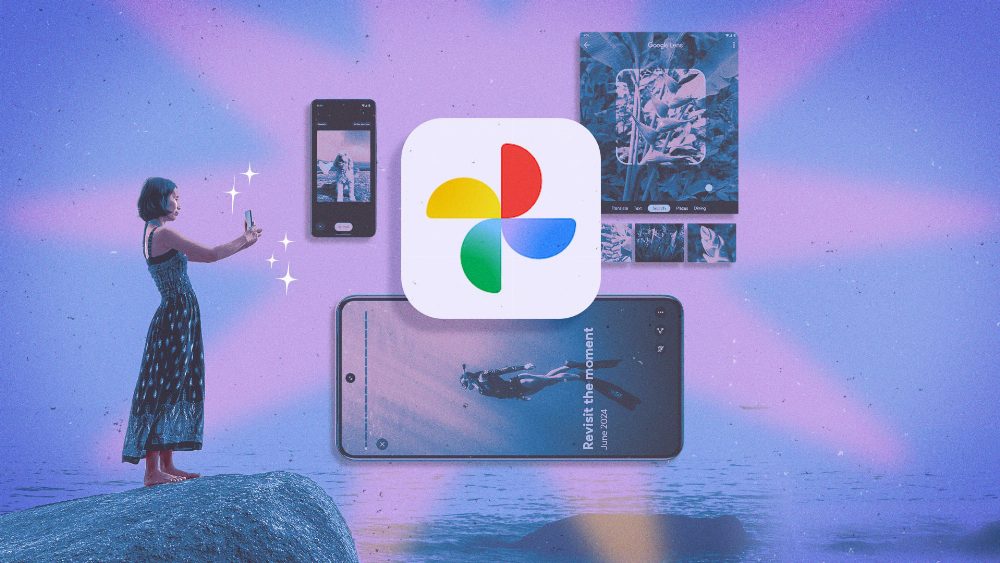
Google Photos is more than just a simple app for storing images; it's a powerful tool that can be tailored to meet your needs. With the right settings and features, users can efficiently manage their photo libraries, save cloud storage, and enhance their overall experience.
Optimize Storage with Smart Features
To make the most out of your Google Photos storage, consider enabling the Storage Saver mode. This feature automatically compresses photos to 16MP and videos to 1080p, allowing you to upload more content without exceeding your storage limits. To activate this, navigate to Settings > Backup > Photo and Video Quality and switch to Storage Saver.
Manage Your Memories and Privacy
The Memories feature in Google Photos can be delightful but may also bring back unwanted memories. To avoid seeing photos of specific individuals, such as an ex, customize your Memories settings. Go to Photos Settings > Preferences > Memories > Hide Faces to choose which faces you want to block from appearing.
Efficiently Clean Up and Backup Your Library
For users worried about clutter, Google Photos offers a storage management tool that helps sort through unnecessary files. Access this feature by going to Backup > Manage storage, where you can delete large files, duplicates, and blurry photos. To ensure that deleted items are completely removed from your storage, remember to empty the Bin, as Google retains deleted files for 30 days.
Additionally, for those using the Locked Folder feature to store sensitive media, ensure you enable cloud backup during setup to avoid losing content if your device is lost. Simply go to the Collections tab and set up the backup option within the Locked Folder.
Source: lifehacker.com